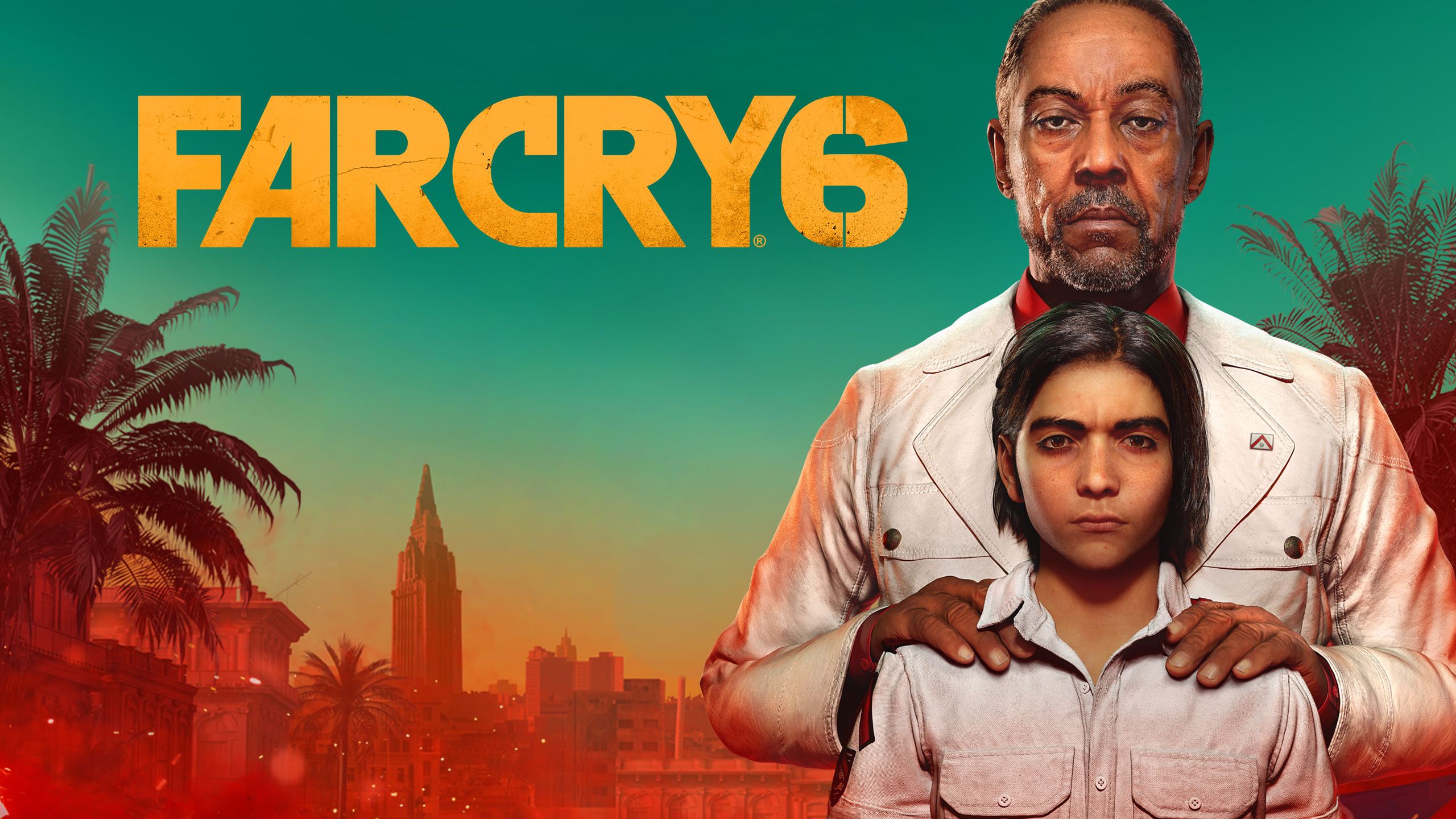
Far Cry 6 Best Settings for Max FPS and Stunning Visuals
Discover the best settings for Far Cry 6 to achieve a silky smooth frame rate without sacrificing image quality. Optimize your PC for the ultimate Yara experience.
Published:
Video Guide
Far Cry 6 | OPTIMIZATION GUIDE and BEST SETTINGS | FPS BOOST | Every Settings BenchmarkedTable of Contents
Exploring the vibrant, chaotic world of Yara is an unforgettable experience, but stuttering frame rates can quickly ruin your revolution. Finding the Far Cry 6 best settings is the most effective way to balance the Dunia Engine's visual fidelity with the performance requirements of your specific hardware configuration.
Whether you are using a mid-range card or a high-end rig, getting these settings right ensures you spend less time tweaking menus and more time liberating Yara. Below, we break down how to optimize your setup for the best balance of speed and clarity.
Why Optimization Matters in Far Cry 6
Like many open-world titles, Far Cry 6 is demanding on both the GPU and CPU. While the game offers a stunning visual presentation, many of the "Ultra" preset options provide diminishing returns. By applying the Far Cry 6 best settings, you can often gain a 15-20% performance boost while the game looks nearly identical to its maximum preset.
According to player experience and community reports, the game tends to be CPU and memory-limited, meaning that simply throwing more GPU power at it might not solve all your frame rate issues. Balancing the graphical load is key to avoiding bottlenecks.
Core Graphics Settings: A Performance Breakdown
Understanding what each setting does is the first step toward a smoother game. The following table highlights the impact of individual settings on your frame rate, based on extensive benchmarking.
Setting
Impact on FPS
Recommendation
Shadows
High (5-11%)
High or Medium
Geometry & Vegetation
High (6-17%)
Medium
Environment
Medium (3-7%)
High
Water
Medium (3-10%)
Medium
Terrain
Low (0-6%)
Ultra
Volumetric Fog
Variable
Medium or High
Mastering Shadows and Geometry
Shadows are consistently one of the most demanding graphical features. While "Ultra" shadows look realistic in specific lighting conditions, the visual jump from "High" to "Ultra" is negligible in active gameplay. We recommend sticking to "High" to save significant rendering resources.
Similarly, "Geometry and Vegetation" controls the density of the lush Yaran flora. Lowering this from "Ultra" to "Medium" is the single most effective way to reclaim performance, often resulting in a massive 17% frame rate increase without making the world look barren.
Performance Priority
Always lower Shadows and Geometry first. If your frame rate is still unstable, use resolution scaling rather than dropping individual settings to "Low," which ruins the visual aesthetic.
Leveraging AMD FidelityFX for Better Performance
One of the biggest boons for PC players in this title is the inclusion of AMD's suite of upscaling technologies. Regardless of whether you use an NVIDIA or AMD graphics card, you should be utilizing these features to ensure the best performance.
FidelityFX Super Resolution (FSR)
FSR renders the game at a lower resolution and upscales it to your monitor's native resolution. For 1440p and 4K gamers, this is a game-changer. We recommend using the "Ultra Quality" setting; anything lower may introduce unwanted blurriness that distracts from the action.
Contrast Adaptive Sharpening (CAS)
Far Cry 6 uses TAA (Temporal Anti-Aliasing) by default, which can result in a slightly blurry image. Turning on CAS is a simple, cost-free way to sharpen the image and clear up that TAA-induced haze. It is essential for maintaining a crisp image while using upscaling.
Hardware-Specific Considerations: VRAM and CPU
Data from Steam suggests that this game is quite heavy on system resources, particularly VRAM. If you are enabling the HD Texture Pack, be warned: it requires significant video memory to load properly.
VRAM Usage Checklist
8GB VRAM: Stick to standard textures. Enabling HD textures on 8GB cards can lead to assets failing to load or stuttering during high-intensity scenes.
11GB+ VRAM: You are safe to use the HD Texture Pack, which adds noticeable crispness to weapon models and character gear.
System Bottlenecks: Because the Dunia Engine is heavy on CPU cache and memory timings, consider closing background applications like web browsers or recording software if you are CPU-bound.
Advanced Tips for Superior Gameplay
Beyond the menu settings, certain gameplay choices can improve your performance and overall experience in Yara.
Use the Benchmark Tool: Always use the built-in benchmark to verify your changes. If you can maintain a 70 FPS average in the benchmark, you will likely experience a rock-solid 60 FPS in the open world.
Avoid DXR Shadows: Ray Traced shadows carry a heavy performance cost and are often difficult to notice in the heat of combat. Disabling them is one of our top recommended steps for a smooth 144Hz experience.
FOV Adjustment: Increasing your Field of View (FOV) significantly impacts performance. If you are struggling for frames, try pulling your FOV back toward 90.
Feature
Performance Cost
Visual Benefit
DXR Reflections
Moderate (10%)
Good
DXR Shadows
High (11%)
Minimal
HD Textures
Low (6%)
High (with enough VRAM)
Frequently Asked Questions
What are the absolute best settings for Far Cry 6 on a mid-range PC?
For mid-range systems, we recommend the "High" preset as a base, then manually set "Geometry and Vegetation" to "Medium," enable "FSR" at "Ultra Quality," and turn on "CAS" to sharpen the image. This provides the best Far Cry 6 best settings experience for most users.
Does Ray Tracing make a big difference?
While Ray Traced reflections look great on puddles and metallic surfaces, the performance hit is significant. Unless you have a high-end card (RTX 3080 or better), we suggest keeping Ray Tracing disabled to maintain a stable frame rate.
Should I use the HD Texture Pack?
Only if you have 11GB or more of VRAM. If you have 8GB or less, the HD Texture Pack may cause your game to crash or suffer from "muddy" textures where assets fail to load correctly.
Why is my game blurry?
The default TAA implementation can cause blurriness. Enable "FidelityFX CAS" in the graphics menu to restore image sharpness without a significant performance penalty.